
By Herbert Boyles September 24, 2026
Most field service software QuickBooks sync duplicates happen because two systems are allowed to create the same accounting event. Give each invoice and payment one source of truth, match existing payments to processor settlements instead of recreating them from bank feeds, and repair historical duplicates carefully before normal synchronization resumes.
A duplicate is rarely just a bookkeeping typo. It is usually evidence that the workflow has lost track of which system owns the invoice, payment, deposit, or bank transaction.
That distinction matters because an invoice, a customer payment, a processor settlement, and the bank-feed line showing that settlements are related records—but they are not four separate sales.
Field Service Software QuickBooks Sync Duplicates: What Is Actually Going Wrong?
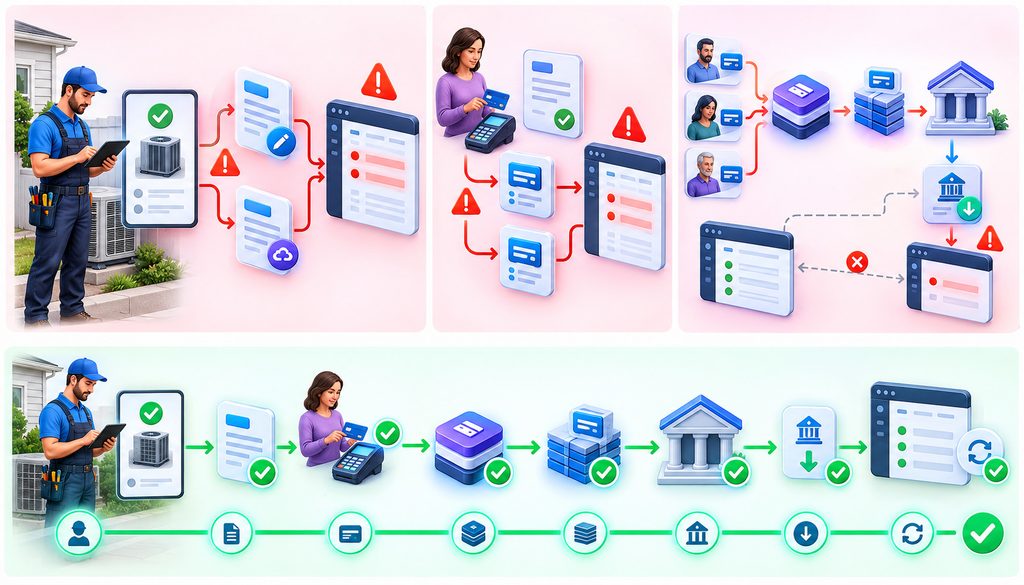
There are three primary ways duplication enters a field-service accounting workflow.
1. The invoice is created twice
A technician or office employee completes a job and creates Invoice A in the field-service platform. The integration sends Invoice A to QuickBooks.
Meanwhile, someone sees that the sync has not appeared yet and manually creates Invoice B. The delayed sync eventually succeeds, leaving two invoices for one job.
Other causes can include two systems independently creating final invoices, overlapping connectors, retry processes, changed invoice numbers, and third-party integrations targeting the same accounting record.
Illustrative HVAC example: A technician closes an HVAC repair at 3:30 p.m. The office does not immediately see the invoice in QuickBooks and recreates it manually. At 3:45 p.m., the original integration finishes. Nothing was billed twice in the field, but accounts receivable now contains two invoices.
2. The customer payment is recorded twice
A customer pays through the job platform and that payment synchronizes to QuickBooks. A payment integration, another connector, or an employee then records the same receipt again.
One economic customer payment should normally result in one accounting payment event. Exactly how that event reaches QuickBooks depends on the field-service and payment integrations involved.
3. The processor deposit is added on top of recorded payments
This is one of the most damaging QuickBooks bank feed duplicates.
The customer payments already exist. The processor combines them into a settlement. The settlement reaches the bank and appears in QuickBooks Bank Transactions.
If the corresponding transaction already exists in QuickBooks, the bookkeeper should first look for the appropriate match rather than automatically creating another income transaction.
Intuit’s guidance on matching downloaded bank transactions to records already in QuickBooks explains that matching connects bank activity to an existing record, while categorizing is appropriate when the transaction has not already been recorded.
Intuit specifically distinguishes the two actions: matching connects downloaded bank activity to an existing QuickBooks record, while categorizing creates a new record. Its duplicate-transaction guidance also identifies adding a deposit as new income after the invoice payment was already recorded as a cause of doubled income.
| Symptom | Likely Root Cause | What to Check First | Typical Corrective Direction |
| Two invoices for one job | Manual invoice plus synced invoice | Job ID, invoice numbers, sync history | Identify the authoritative invoice before changing either |
| Two payments against one invoice | Multiple systems posted payment | Payment IDs, dates, processor reference | Determine which posting represents the real payment |
| Payment plus identical bank-feed income | Deposit categorized instead of matched | Bank feed and existing deposit/payment | Match or reconcile the existing workflow |
| Processor batch differs from QuickBooks deposit | Fees, refunds, timing, omitted payments | Settlement report | Rebuild gross-to-net reconciliation |
| Unusual or negative Undeposited Funds balance | Payments/deposits incorrectly grouped or edited | Payment destination and deposits | Trace individual payments through deposits |
| Deleted transaction returns | Source integration recreated it | Sync ownership and retry history | Fix source/sync logic before deleting again |
| Invoice appears paid twice | Duplicate payment or misapplied payment | Payment records and invoice links | Identify the genuine customer payment |
| Reconciliation changes after cleanup | Reconciled transaction was modified | Prior reconciliation report/audit history | Restore or correct with accountant oversight |
[Data Opportunity: Insert verified current research on bookkeeping automation or reconciliation errors only if a credible primary source is available.]
Pick a Source of Truth Before Fixing Anything

The most important control in a job software accounting integration is record ownership.
For each transaction type, decide which system is allowed to originate it. This matters especially when your job-management software connects billing and invoicing with QuickBooks or another accounting platform. The second system may receive, update, display, or reconcile the record without independently creating another copy.
A “two-way QuickBooks sync” therefore does not have to mean both systems can freely originate the same invoice.
| Record | Preferred Owner | Other System’s Role | Recommended Flow | Duplicate Risk |
| Customer/job | Depends on operating workflow | Map or update | Controlled synchronization | Medium |
| Estimate | Often job system | Reference/update | One originating estimate | Medium |
| Invoice | Job software or QuickBooks | Receive/update | One designated origin | High |
| Customer payment | Payment-capture system/integration | Apply or display | Post once | Very high |
| Credit/refund | Designated accounting workflow | Synchronize status | One authoritative adjustment | High |
| Processor settlement | Processor/accounting workflow | Reconcile | Settlement-to-bank flow | High |
| Processing fee | Accounting/payment integration | Reconcile | Separate from revenue | Medium |
| Bank transaction | Financial institution | QuickBooks matches/categorizes | Evidence of cash movement | High if miscategorized |
Configuration A — Job software owns invoicing
For many field-service teams:
Job completed → invoice finalized in job software → invoice synchronizes once to QuickBooks → customer payment applies to that accounting record.
This can make operational sense when technicians or dispatch staff finalize charges from the job-management system. Job Manager Cloud’s published field-service material describes invoicing/reporting and payment collection as part of field operations, although its public pages I reviewed do not establish the detailed QuickBooks synchronization rules assumed in this article.
Configuration B — QuickBooks owns invoicing
Some companies deliberately reserve final invoicing for accounting staff in QuickBooks.
If that is the chosen architecture, the job platform should not independently originate another final accounting invoice.
The important control is not which product wins. The important control is that only one system originates the accounting transaction.
[Expert Quote Opportunity: Ask a QuickBooks ProAdvisor, controller, or accounting-integration specialist why transaction ownership matters more than simply enabling two-way sync.]
One-Way vs Two-Way Sync
A one-way invoice sync may send finalized invoices from the operational system to QuickBooks without allowing QuickBooks to create invoices back in the job platform.
A more complex integration may exchange payment status, customer changes, invoice edits, or other updates in both directions. That does not remove the need for ownership rules.
Before repairing duplicates, document:
- which system creates each transaction;
- how customers are matched;
- whether invoice numbers are preserved;
- whether edited invoices update or recreate records;
- what happens after a failed sync;
- whether retries use stored transaction IDs;
- whether deletions synchronize;
- and which timestamps or external IDs tie the records together.
Deleting a duplicate before understanding that logic can allow the source application to recreate it during the next synchronization cycle.
A Clean Invoice Workflow
A controlled field service invoice sync should look like this:
- Create the job.
- Perform the work.
- Approve final labor, materials, taxes, and other charges.
- Create the invoice in the designated source system.
- Allow that invoice to synchronize once to QuickBooks.
- Verify the mapped customer, amount, invoice number, and accounting treatment.
- If the sync is delayed, investigate the queue instead of manually recreating the invoice.
- Process later corrections through the integration’s supported edit workflow.
A broader job-management software overview can help operations teams document where job scheduling and tracking end and the accounting workflow begins.
Do Not Do This
Do not recreate invoices merely because synchronization appears slow. Do not run overlapping connectors for the same transaction stream. Do not change record ownership informally. And do not delete synchronized invoices until you know which transaction ID the integration is tracking.
A Clean Payment Workflow
An invoice is a request for money. A customer payment records receipt against that invoice. A processor settlement moves processed funds. A bank deposit records the movement into the bank. A bank-feed transaction is downloaded evidence of that bank movement.
Treating all five as a sale creates duplication.
A clean conceptual flow is:
Customer pays invoice
↓
Payment is applied once to the invoice
↓
Payment enters Undeposited Funds or another clearing workflow where appropriate
↓
Processor groups transactions into settlement batches
↓
Fees or adjustments are accounted for where applicable
↓
Settlement reaches the bank
↓
Downloaded bank activity is matched/reconciled
Illustrative plumbing example: A plumbing company records a card payment through its job application. The payment appears against the QuickBooks invoice.
If a separate processor connector then creates another customer payment, the repair begins by identifying which transaction is tied to the genuine processor transaction—not by automatically deleting whichever payment was entered second.
Undeposited Funds Reconciliation

QuickBooks Online’s Undeposited Funds account can hold customer payments before they are grouped into a deposit. Intuit’s current guidance on depositing payments through Undeposited Funds in QuickBooks Online explains that the account is useful when multiple payments need to be combined into a single deposit, while payments processed through QuickBooks Payments can follow a different workflow.
Intuit explains that multiple payments can be placed in Undeposited Funds and then combined through a Bank Deposit so the QuickBooks deposit matches what the bank recorded. QuickBooks Payments transactions can follow a different automated workflow, so this process should not be imposed blindly on every payment integration.
That makes undeposited funds reconciliation especially useful where several individually recorded customer payments settle as one bank deposit.
An accountant may instead use a payment clearing, processor clearing, or merchant settlement account. Functionally, the goal is similar: preserve individual customer payments while providing a bridge to the processor’s settlement activity.
| Method | Best Fit | Main Advantage | Main Risk | Deposit Matching |
| Direct-to-bank posting | Simple workflows where individual accounting payments mirror bank activity | Fewer steps | Poor fit for batched/net settlements | Easy only when amounts align |
| Undeposited Funds | Multiple payments combined into deposits | Native grouping workflow | Old items can accumulate if deposits are mishandled | Strong for grouped deposits |
| Processor clearing account | Complex processor batches, fees, refunds, timing differences | Clear gross-to-net bridge | Requires disciplined reconciliation | Strong when settlement reporting is detailed |
Matching Processor Deposits in QuickBooks
The goal when matching processor deposits QuickBooks activity is to connect the cash that reached the bank with the customer payments and settlement records already recorded—not to create another sale.
A processor batch may differ from a day’s gross customer payments because of fees, refunds, chargebacks, reserves, adjustments, funding delays, settlement cutoffs, or transactions funded on another day.
Not every processor deducts all of those items from every batch. Reconcile against the actual processor settlement report.
Illustrative electrical contractor example: Five card payments have already been recorded against five invoices. The processor later sends one combined deposit. Categorizing that bank-feed line as sales creates new income on top of the five payments. The proper accounting workflow instead groups or clears the underlying payments and reconciles the resulting settlement to the downloaded bank activity.
Gross Sales, Processing Fees, and Net Deposits
The accounting trail should preserve the customer’s gross payment and separately recognize processing costs and other legitimate settlement adjustments.
Illustrative arithmetic only:
- Gross customer payments: $10,000
- Illustrative processing fees: $250
- Net settlement: $9,750
The $250 is not presented as a current processor rate. It simply demonstrates why a $9,750 bank deposit should not normally cause $10,000 of customer payments to be rewritten as $9,750 of revenue.
Intuit’s QuickBooks Online guidance provides a workflow for recording third-party merchant fees separately while producing a bank deposit that reflects the amount reaching the bank.
Specific account presentation can depend on the company’s accounting policies and circumstances.
Why Plug Entries Create Bigger Problems
An unexplained difference posted repeatedly to miscellaneous expense, sales, suspense, or an arbitrary adjustment account does not reconcile the processor. It merely makes the difference disappear from one screen.
Over time, those plugs make gross sales reconciliation harder because nobody can distinguish processing fees from refunds, chargebacks, timing differences, reserves, or genuine errors.
Use processor settlement records and transaction-level support wherever practical. Do not manufacture unsupported journal entries solely to force an account to zero.
Monthly Reconciliation Routine
The strongest control is to reconcile in the same direction the money moved.
1. Processor records first
Start with settlement reports, batch reports, transaction activity, fees, refunds, chargebacks, adjustments, and net funding.
Determine what the processor says happened before interpreting the bank feed.
2. QuickBooks second
Verify invoices, customer payments, refunds or credits, merchant fees, deposits, and the balance in Undeposited Funds or the processor clearing account.
3. Bank activity third
Finally verify that the expected settlements actually reached the bank.
QuickBooks reconciliation compares transactions recorded in the books with the bank or credit-card statement.
The evidence chain is therefore:
Processor statement → QuickBooks → bank activity
Monthly reconciliation checklist
- Tie total processor payments to transaction activity.
- Identify refunds separately.
- Identify disputes and chargebacks.
- Verify processor fees.
- Review adjustments or reserves.
- Tie individual transactions to settlement batches.
- Compare processor activity with QuickBooks customer payments.
- Reconcile Undeposited Funds or the processor clearing balance.
- Compare expected net settlements with bank deposits.
- Investigate unmatched bank-feed activity and document legitimate timing differences rather than forcing everything to zero.
How to Clean Up Months of Existing Duplicates
Treat historical duplicate cleanup as an accounting repair project:
- Map how invoices, payments, deposits, and fees are currently created.
- Document sync direction before editing anything.
- Pause or control the problematic integration if its supported settings allow it.
- Preserve reports, exports, settlement records, and reconciliation reports.
- Identify the authoritative invoice and payment for each affected job.
- Separate open periods from closed or previously reconciled periods.
- Classify errors as invoice, payment, deposit, or bank-feed duplicates.
- Repair current-period items first.
- Escalate material closed-period corrections to the accounting professional responsible for the books.
- Reconcile processor settlements again.
- Confirm customer receivable balances.
- Test a small controlled transaction set before restoring normal volume.
- Document the corrected procedure for dispatch, billing, bookkeeping, and management.
Bulk deletion should not be step one. QuickBooks Online retains deleted-transaction information in its Audit Log, but Intuit notes that a deleted transaction itself cannot simply be restored.
Do Not Corrupt Closed Periods While Fixing Duplicates
Yesterday’s duplicate and last year’s duplicate are different repair problems.
An older invoice or payment may already affect a completed reconciliation, a closed accounting month, a filed sales-tax period, prior financial statements, customer credits, or linked deposits.
Changing it can alter revenue, receivables, cash, tax records, and reconciliations.
QuickBooks Online supports closing dates and an Exceptions to Closing Date report for reviewing changes after books are closed.
Illustrative multi-location example: A service company discovers six months of duplicated deposits after every bank account has already been reconciled. Correcting today’s workflow can happen immediately. Rewriting six months of reconciled history requires a controlled plan with the company’s bookkeeper, controller, accountant, or CPA.
QuickBooks Duplicate Payments Fix
A reliable quickbooks duplicate payments fix starts with diagnosis.
Before removing anything, determine whether there are truly two payment transactions, or whether one item is a payment and another is the associated deposit.
Check whether:
- the bank-feed transaction was added as income;
- the processor created its own transaction;
- both the field-service application and another payment integration posted the payment;
- one payment is merely unapplied;
- one record is already reconciled;
- or the apparent duplicate is a reporting or matching issue.
Repair the record that does not represent a legitimate accounting event, while protecting linked and reconciled activity.
Field Service Invoice Sync Errors
Common field service invoice sync errors originate from customer matching, inactive records, account or item mappings, duplicate invoice numbers, tax-setting conflicts, edited invoices, deleted source records, failed retry queues, expired connection credentials, closed-period restrictions, or multiple integrations writing to the same destination.
Because integrations differ, do not assume a failed record will retry, overwrite, duplicate, or disappear in a particular way without checking that connector’s documentation and logs.
What Integrated Payment Processing Changes
The ideal integrated workflow is conceptually simple:
Job → invoice → customer payment → payment applied once → processor settlement → fee recorded separately → net bank activity reconciled
The main benefit is eliminating unnecessary re-keying. If the payment integration already posts the correct accounting event, office staff should not manually create the same payment again.
Job Manager Cloud also publishes a broader discussion of integrated payments within software platforms, including the operational importance of settlement and reconciliation.
Integrated payments can reduce manual keying, disconnected invoice balances, payment-date mistakes, and deposit-matching errors. They do not eliminate reconciliation: fees, refunds, disputes, settlement timing, and bank activity still need review.
| Step | Integrated Workflow | Manual Multi-System Workflow | Duplicate Risk |
| Customer payment | Captured and posted through linked workflow | Entered in multiple places | Lower vs. higher |
| Invoice link | Payment can retain source relationship | Employee must select/recreate link | Medium |
| Accounting posting | Automated once when designed correctly | Re-keyed | High |
| Deposit creation | Settlement workflow can be mapped | Often reconstructed manually | Medium-high |
| Processing fees | Integration/report can support reconciliation | Manually identified | Medium |
| Bank matching | Existing settlement can be matched | Deposit may be added as new income | High |
Prevent the Problem From Coming Back
Assign record ownership
Document which system originates invoices, payments, refunds, and deposits.
Restrict manual workarounds
A delayed integration should create a support or bookkeeping task—not an immediate duplicate accounting entry.
Review failed sync queues
Investigate rejected records before manually rebuilding them.
Test after integration changes
Run controlled tests after credential changes, QuickBooks account changes, processor changes, item-mapping changes, tax-setting changes, or connector configuration changes.
Reconcile monthly
Do not leave processor settlement reconciliation until year-end.
Use a written SOP
Give dispatch, technicians, billing staff, and bookkeepers a one-page field service accounting workflow defining who—or which system—owns each step.
| Accounting Event | Create It Where? | Sync/Match Where? | What Staff Should Never Do |
| Invoice | Designated job system or QuickBooks | Sync to the other system if supported | Create a second final invoice |
| Payment | Designated payment workflow | Apply once to invoice | Re-key an already posted payment |
| Deposit | Deposit/settlement workflow | Match to bank activity | Treat existing customer payments as new sales again |
| Processing fee | Accounting/payment workflow | Reconcile to processor report | Hide unexplained differences in sales |
| Refund | Designated source | Sync/reconcile once | Create competing refund records |
| Bank-feed settlement | Bank supplies activity | Match existing transaction when appropriate | Automatically categorize every deposit as revenue |
Troubleshooting: Find the Event That Multiplied
If the books still do not reconcile, stop looking only at totals.
Pick one affected job and follow its identifiers from job → invoice → payment → processor transaction → settlement → QuickBooks deposit → bank statement.
Once you identify where one economic event became two accounting records, the broader repair pattern usually becomes much clearer.
Frequently Asked Questions
Why does QuickBooks keep creating duplicate invoices from my field service software?
First establish which application actually created each invoice. Common causes include manual recreation, overlapping integrations, retry behavior, or both systems originating invoices. Fix the ownership or synchronization problem before repeatedly deleting duplicates.
Should my field service software or QuickBooks create the invoice?
Either can be appropriate. What matters is selecting one system as the origin for the final accounting invoice and configuring the rest of the workflow around that decision.
Why is a payment showing twice in QuickBooks?
There may be two customer payments, or you may be looking at a payment plus its deposit. Check transaction types, processor references, integration history, invoice application, and reconciliation status before deleting anything.
Should I add or match a processor deposit from the QuickBooks bank feed?
If the corresponding accounting transaction already exists, matching it is generally the appropriate concept. Categorizing a bank transaction creates a new record; genuinely new transactions that do not already exist may instead need categorization.
How does Undeposited Funds help with batched card deposits?
It can hold individually recorded customer payments until they are combined into a deposit matching the bank’s grouped amount. An appropriately designed processor clearing account can serve a similar bridging purpose in other architectures.
How do I record processing fees when the processor deposits less than the customer paid?
Preserve the gross customer payment and separately identify the processor fee or other valid settlement adjustment. Reconcile those components to the settlement report and net bank funding rather than reducing revenue to the deposit amount.
Can I simply delete old duplicate invoices and payments?
Not safely without checking their relationships first. Older transactions may already affect reconciliations, closed periods, tax filings, receivables, deposits, or financial statements.
Does integrated payment processing eliminate duplicate payments?
No. It can reduce manual entry and therefore reduce opportunities for duplication, but poor configuration, overlapping integrations, refunds, fees, settlement timing, and reconciliation issues can still create problems.
Make Every Transaction Enter the Books Once
The durable solution to field service software QuickBooks sync duplicates is an accounting workflow in which every economic event has one owner.
One system originates the invoice. The integration transfers or updates it. The customer payment is posted once. Processor settlements are reconciled to those payments. Bank-feed activity is matched appropriately when a record already exists. And historical repairs protect reconciled and closed periods rather than rewriting them casually.
That is what turns a fragile sync into a controlled accounting process.